People look for a jobsite photo organizer when the pictures exist but the story does not. The trench was documented, the label was legible, the rough-in looked right—then Monday arrives, and IMG_4829 tells no one which address, which phase, or who still needs the file.
This guide is about order you can repeat—not a perfect archive. It pairs naturally with our earlier article on what a jobsite photo app should do for your crew, office, and clients, which focuses on habits in the field (wide shots, detail shots, naming that still makes sense when you are tired). Here we focus on structure: where photos live, how folders or albums are named, and how you hand proof to someone who was not on site.
Why “organized” matters as much as “taken”
On a jobsite, photos usually answer different questions for different people:
- Inspectors and compliance want clear evidence and readable labels—not artful angles.
- The office wants a timeline they can skim without calling three people for context.
- Homeowners or general contractors want confidence that work progressed in an orderly way.
When everything lands in one giant album or a long text thread, everyone still does the work—only now they spend hours hunting. That is usually a filing problem, not a camera problem.
Five pieces of information worth repeating
You do not need fifty tags. If every important photo carries the same five ideas—by folder name, filename, caption, or album title—most teams get 80% of the benefit:
- Which job. Use the identifier your shop already relies on: street and unit, job number, permit ID, or ticket number. Consistency matters more than creativity.
- Which phase. Rough-in, underground, insulation, drywall, punch list, turnover—pick plain words and stick to them across the crew.
- What the image is for. Short words work:
before,after,damage-found,label-visible,temp-cover. They tell future-you why the frame exists. - Who may need it next. Think in handoffs: an inspector packet, a homeowner update, warranty documentation, the next trade. One photo can appear in more than one bundle if your tool allows it—better than forwarding the same file through six chats.
- When it was captured. Folder dates help until crews rotate between sites. For claims, inspections, or disputes, reliable capture time—or a visible date and place on the image—matters more than memory.
If five feels like too much this week, shrink to three: job + phase + before/after. You will still be ahead of a roll full of defaults.
Where filing systems usually break
These patterns are common—and fixable:
- One endless album per address. After a few months, nobody scrolls back to the week they need.
- Group chat as the only archive. Forwards bury the original, and search gets worse as the thread grows.
- Personal phones as the only copy. Devices break, change hands, or leave with a technician—proof should not leave with them unscoped.
A practical middle ground: pin one canonical link (shared drive, cloud folder, or album) next to the job conversation, and use it for anything someone might need later.
Two ways to use the same set of photos
We have seen calmer teams split their material into:
- A running timeline — chronological photos that show how the job progressed week to week.
- Named packets — smaller sets for a specific handoff, for example “Insulation inspection — Maple St” or “East unit — punch list complete.”
The timeline answers “what happened, in order.” The packet answers “send me exactly this bundle.” Both can point at the same files; the difference is how people find them.
What the office needs from progress photos
Field teams often capture strong images. Estimating and project management still struggle when photos arrive as a Friday dump with no narrative.
A simple rhythm helps:
- One wide shot so the location is obvious.
- One tight shot so nameplates, stickers, and labels are readable without zooming.
- A filename or caption that states what changed since the last batch.
When leadership can scroll in order, many back-and-forth threads about scope or timing get shorter—because the visual record already told the story.
Before, during, and finished: separate when stakes are high
Disputes often hinge on what the space looked like under temporary protection, while work was open, and when you left for the day or phase. When those moments matter, keep them in separately labeled groups—even if it costs a little extra storage.
If someone asks you to prove a condition, respond with one well-labeled folder or zip tied to the job. A chain of blurry message forwards undermines confidence, even when the underlying work was sound.
When messaging apps stop being enough
Texts and team chat are excellent for quick updates. They are weaker as a long-term system of record when you need search, permissions, links you can share with a client, or the ability to revoke access after closeout.
If you are not ready for a dedicated tool, a small habit still helps: one pinned folder link per active job and a team rule that important proof lands there—not only in chat.
How TimeFotos Cloud fits in
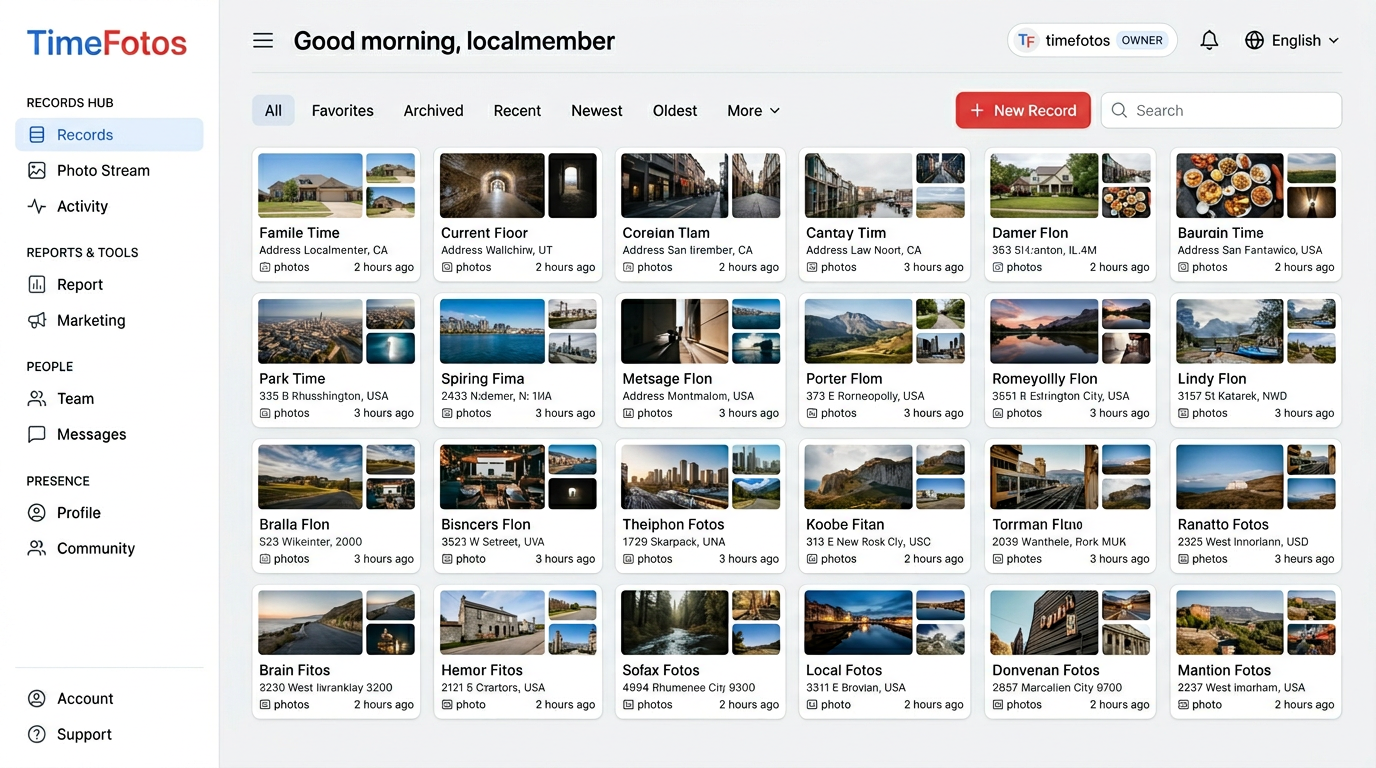
TimeFotos is built for documenting real life and real work. TimeFotos Cloud is our optional paid layer for teams that want job-linked albums or records, labels that hold up months later, stamped captures when time and place should be visible on the image itself, and sharing that does not mean exporting an entire personal camera roll.
Cloud does not replace clear naming and simple habits—it supports them. If you want to see how that maps to the way you already work, read more at TimeFotos Cloud.
A short end-of-day checklist
Pick the busiest job on your list and try this once—usually well under fifteen minutes:
- Open or create one workspace for that job (folder, album, or record—whatever your system calls it).
- Add subfolders or sections only for phases you are actively touching—skip empty placeholders for work months away.
- Move the most important photos into the right place, and remove obvious duplicates.
- Rename a handful of key files using a boring, searchable pattern, for example
2026-05-01-Maple-St-rough-in-before.jpg. - Send the office one clear note with where to look and what is new—for example: “Maple St rough-in album updated; inspection packet 3 is under Inspection.”
You may still have legacy folders to clean up over time—and that is normal. The win is locking in a pattern for today’s work, so next week’s call is about the job—not about finding last week’s photos.